


How to install SSL on Joomla
The instructions below walk you through installing SSL on Joomla. If you have more than one server or device, you will need to install the certificate on each one you want to protect. If you have not generated your certificate or finished validation yet, see our CSR generation instructions and skip the steps below.
What you will need
- Your server certificate
This is the certificate the certificate authority issued for your domain. It may have been emailed to you. If not, you can download it from your account dashboard by clicking on your order.
- Your intermediate certificates
These files let devices connecting to your server identify the issuing certificate authority. There may be more than one of them. If your certificate arrived in a ZIP folder, the intermediates — sometimes called the CA bundle — should be in there too. If not, download the right CA bundle for your certificate.
- Your private key
This file should be on your server, or in your hands if you generated your CSR with a free generator tool. On some platforms, such as Microsoft IIS, the private key is not immediately visible to you but the server keeps track of it.
Installation instructions
- Install it on your server. Before you can add SSL to your Joomla site, you need to install the certificate on your server and note its IP address.
- Set up your configuration.php file. Open configuration.php, find the line reading "var.$live_site=" and enter your URL.
- Set up your .htaccess file. Add the following lines:
RewriteEngine On
RewriteCond %{HTTPS} OFF
RewriteRule (.*) https://%{HTTP_HOST}%{REQUEST_URI} - Enable SSL. Under Global Configuration, on the Server tab, there are three options in the Settings section.
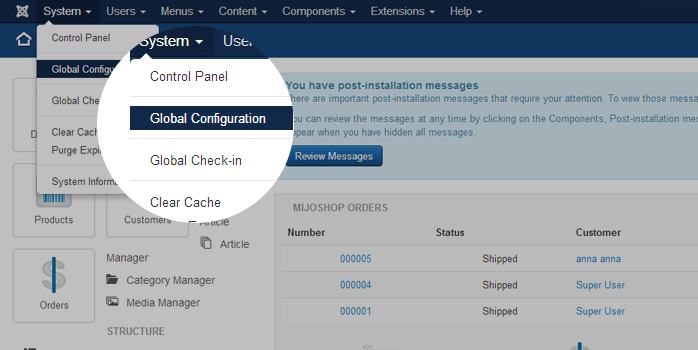
Choose Entire Site.
- Save. Click the Apply/Save button.
That is it — your SSL certificate is installed. To check your work, open the site in your browser at https://yourdomain.tld and look at the certificate and site information to confirm HTTPS is working properly. Remember that you may need to restart your server before the changes take effect.
To check your installation properly, use our SSL Checker. If something does not add up, get in touch and we will look at it with you.


