


How to generate a CSR on a Webmin server
The instructions below walk you through generating a CSR in Webmin. For more on CSRs and why your private key matters, see our Certificate Signing Request overview. If you have already generated the CSR and received your trusted SSL certificate, see our SSL installation instructions for Webmin and skip the steps below.
1. Log in
Log in to the Webmin interface in your browser.
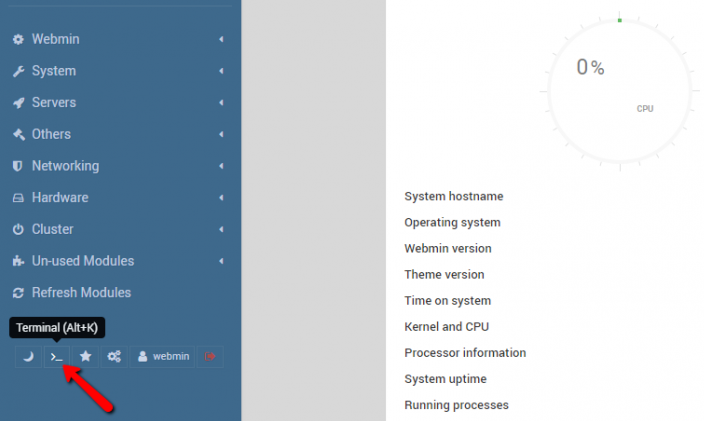
2. Go to the Terminal
In the left panel, click the Terminal icon, or press Alt+K.
3. Paste the OpenSSL command
The Terminal will open. Paste the OpenSSL command below to generate the CSR and the private key.
Note: do not paste the command word for word. Change the values to match your own domain and organisation.
sudo openssl req -new -newkey rsa:2048 -nodes \
  -keyout /etc/ssl/tudominio.com.key \
  -out /etc/ssl/tudominio.com.csr \
  -subj "/C=US/ST=Florida/L=Saint Petersburg/O=Rapid Web Services/OU=IT/CN=tudominio.com"

cat /etc/ssl/tudominio.com.csr- /etc/ssl/example.com.key: the path the key is written to.
- C: two-letter country code.
- ST: the full name of the state. For example, Florida.
- L: the full name of the city. For example, New York.
- O: the full name of your organisation, with no special characters. For an OV or EV certificate this has to be your organisation's legal name.
- OU: the department name, for example Marketing.
- CN: www.yourdomain.com or yourdomain.com. Include an asterisk if you plan to use a wildcard certificate (for example: *.yourdomain.com).
The CSR is now generated. Copy everything from -----BEGIN CERTIFICATE REQUEST----- to -----END CERTIFICATE REQUEST----- and paste it into a plain text editor such as Notepad.


